Choose a to-do app that lets you open the materials from the task where you use them. Put a screenshot beside the point it illustrates, attach the exact PDF you need to keep, and link to a shared document that is still changing.
Nina is reviewing a welcome pack. She needs a screenshot to flag a spacing issue, a PDF to preserve the proof she actually checked, and a collaborative document for edits that are still underway. Calling all three “reference” makes it harder to decide which one to open.
Give each piece of material a job
Use the image when someone needs to see a specific issue. Put one sentence next to it saying where to look. Use a file attachment for a fixed version that you may need after approval, and include the filename or revision in the surrounding note.
Keep a link for work other people are still editing. Label it with the current purpose, such as “working copy for next edits.” If access to the link depends on a shared drive, try opening it with the account you’ll actually use.
Test an app with one welcome-pack review
| Material | Put it here | Label |
|---|---|---|
| Spacing screenshot | Image in the task note | Check the gap above the second heading |
| Welcome-pack-v3.pdf | File in the task note | Proof reviewed for approval |
| Collaborative draft | Link in the task note | Working copy for the next edits |
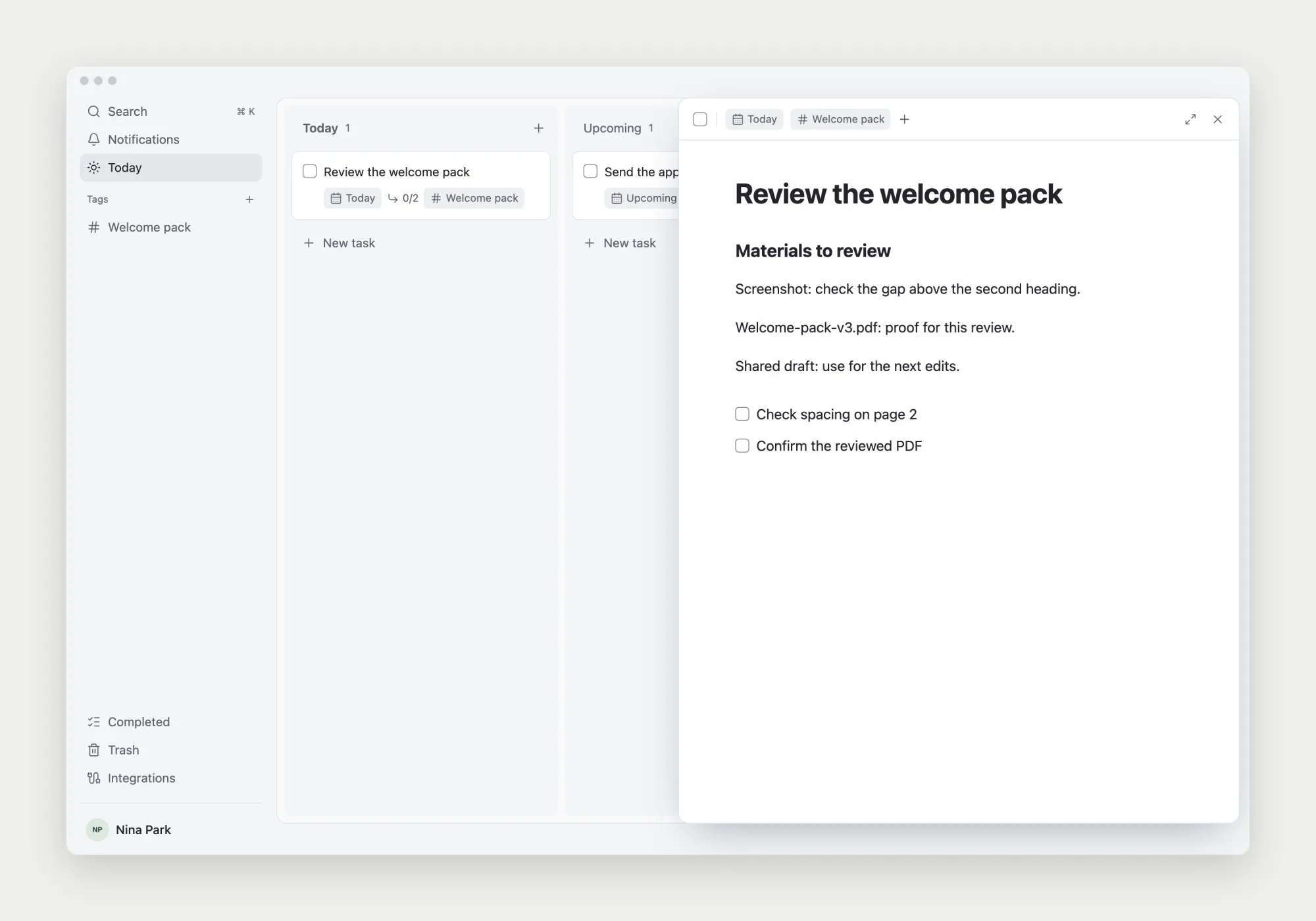
If the shared draft is later replaced, the uploaded PDF still identifies the version that was reviewed at that point. Date the approval in the note if you expect to compare multiple versions.
Open the same task after completing it
In TodoNote, create “Review the welcome pack” and use the note’s slash menu to add an image or a file. Paste the working-document link by its label. Start with a small file and check the current plan limits before using large proofs.
Write the outcome before marking the task complete. Then reopen it from Completed and check whether you can identify and open the PDF you reviewed. This is a useful test whenever a delivered version might come up again.
For the first task, choose a real document that you expect to open again. If its name tells you little, add a short note explaining why that version matters.
How to write a task note you can pick up tomorrow
References · Write notes and add images or files · Understand account and plan limits