Set dates and plan your work
Separate the day you intend to start from the deadline you need to meet.
On this page
Start dates and due dates
The start date determines when you plan to work and where the task appears on the board. The due date records the latest finish date.
If a proposal is due Friday and research begins Wednesday, use Wednesday as the start date and Friday as the due date. You can set only a start date when there is no deadline.
Set or change dates
Open the task’s date control, choose its dates, and save. Return here when plans change, or clear a date you no longer need.
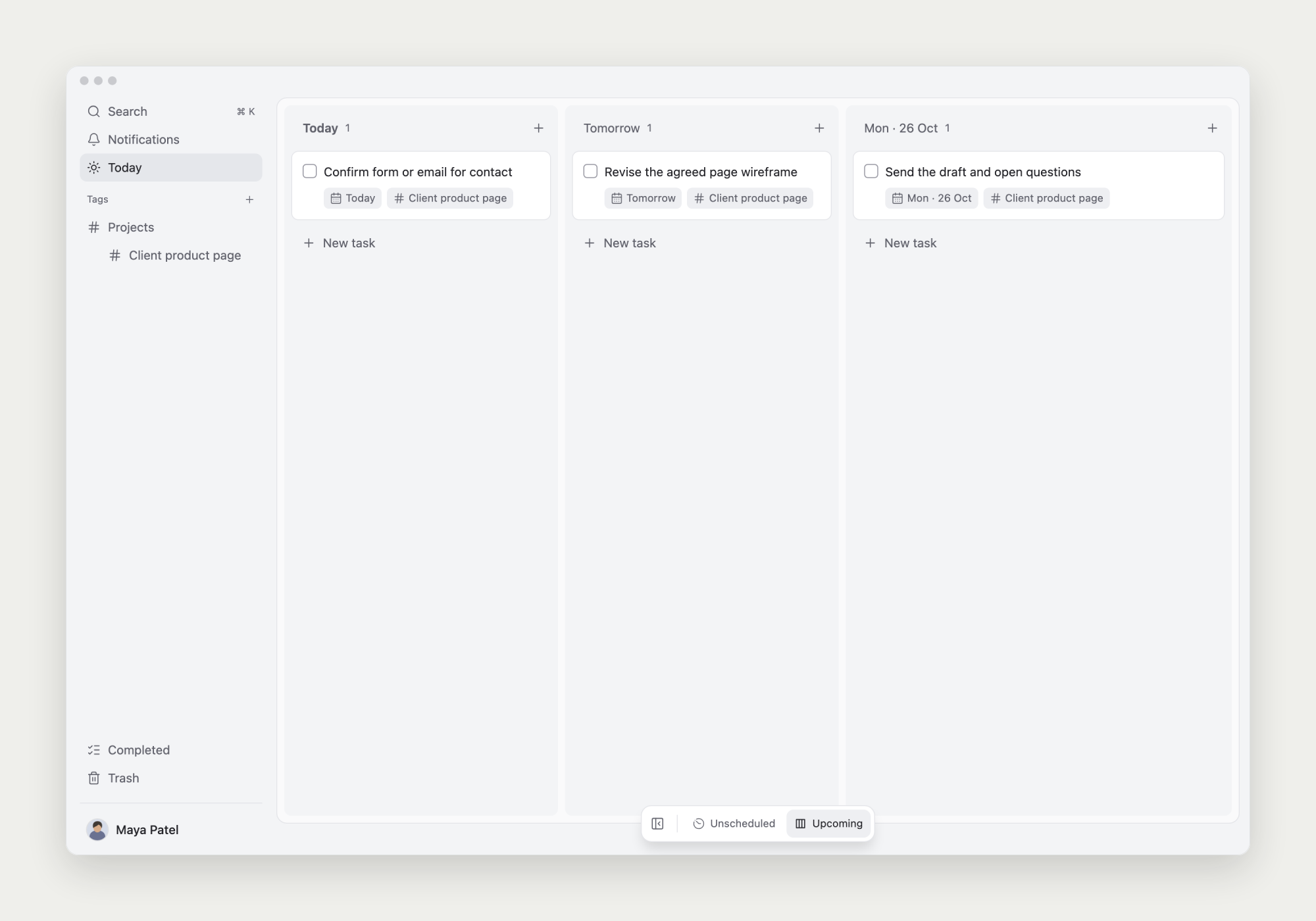
Tasks created directly in a date lane use that lane’s date. Subtasks follow their own start dates and do not inherit the parent’s date. See tracking subtasks on the board.
Add a specific time
In the date picker, add hours and minutes to the start date or due date. Remove the time to keep only a date. A meeting might start Thursday at 14:00 and end at 15:00; an all-day task can keep dates only.
Each time requires its corresponding date. When both endpoints have times, the end cannot precede the start.
Understand time zones
Open your avatar menu at the bottom left and choose Settings → Time zone. Timed tasks display in the current app time zone; the same instant may fall on another date. Date-only tasks keep their calendar dates when the time zone changes.
For example, Thursday at 09:00 in Shanghai may display as Wednesday evening in New York. A date-only task for Thursday stays on Thursday. Due reminders keep their own saved time zone; see Reminders & notifications.
Keep undecided work in Brain dump
Leave tasks without a planned start in Brain dump. When planning your day, choose the work you’ll actually move forward and set its start date.
Use the controls at the bottom of the board to show Brain dump or future date lanes.
Drag tasks to plan and reorder
Drag a card within a board lane to change its order. Drag it to another date lane to change its start date. Moving it to Brain dump clears both start and due dates and their times.
After moving a timed task, check its dates and time range. Dragging schedules the start; check the due date separately against your deadline.
Add a reminder when needed
Dates describe the plan; due reminders create notifications. After setting a due date, choose a reminder for that day or several days earlier.